
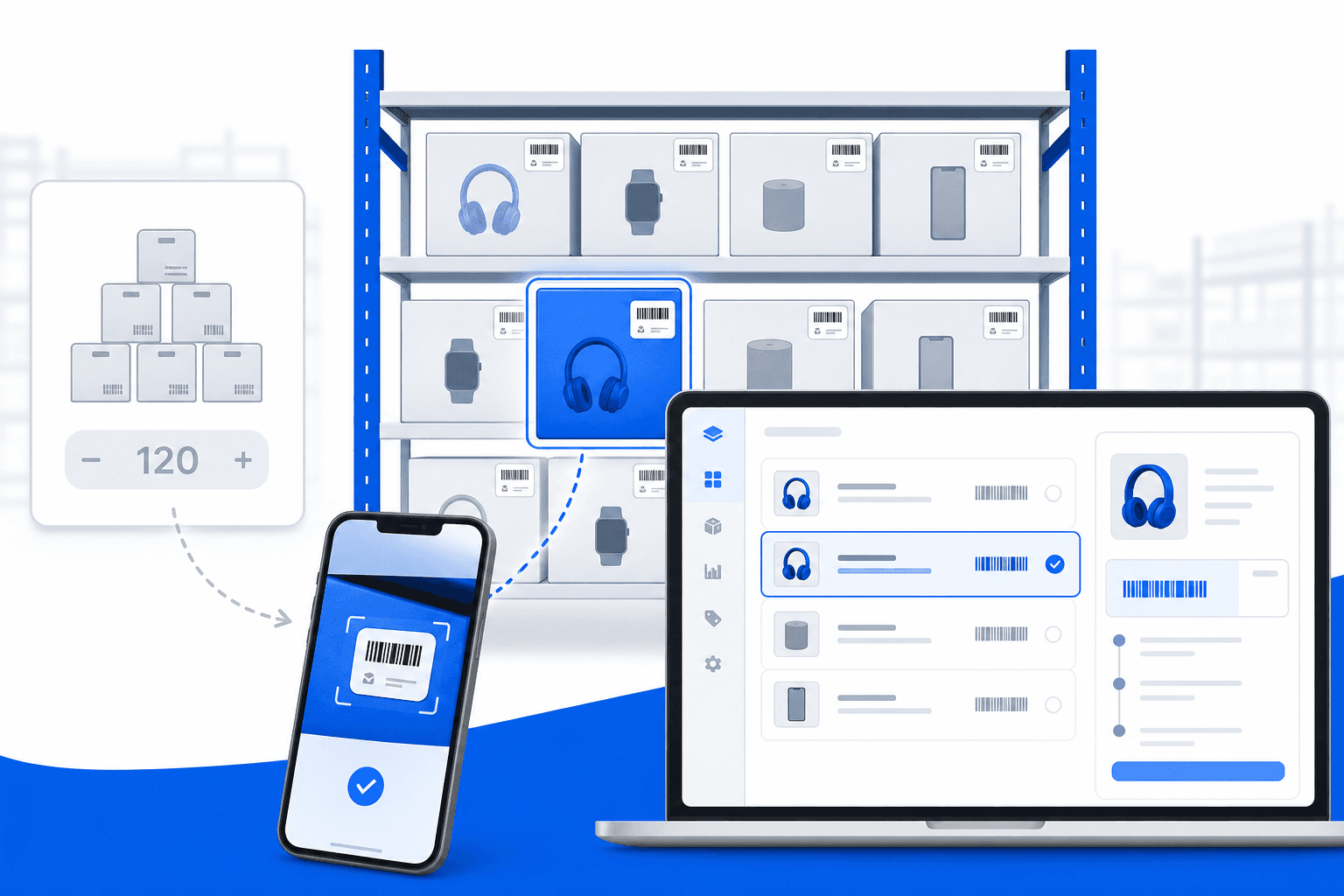
Individual Unit Tracking for Inventory
Track every physical unit by serial number, IMEI, or custom keys — know exactly which piece you sold, shipped, or received back.
Individual Unit Tracking for Inventory
Most products are fine with bulk stock — you only need to know you have 50 units on hand. But for items like mobile phones, laptops, appliances, or any product identified by a serial number or IMEI, quantity alone is not enough. You need to know which specific unit went to which customer.
Growupsell's Individual Unit Tracking gives you that visibility — without giving up the bulk inventory mode your other products already use.
Bulk vs Individual Tracking
Every product can use one of two modes:
| Mode | Best for | How stock works |
|---|---|---|
| Bulk | Groceries, apparel (size runs), general retail | You add a quantity; stock is a single number per SKU |
| Individual | Electronics, serialized goods, high-value items | Each physical unit is its own record with unique tracking data (e.g. IMEI + serial number) |
You choose the mode per product. Switching from bulk to individual resets that product's quantity-based stock so you can rebuild inventory unit by unit — a deliberate step to avoid mixing two counting models.
How the Flow Works
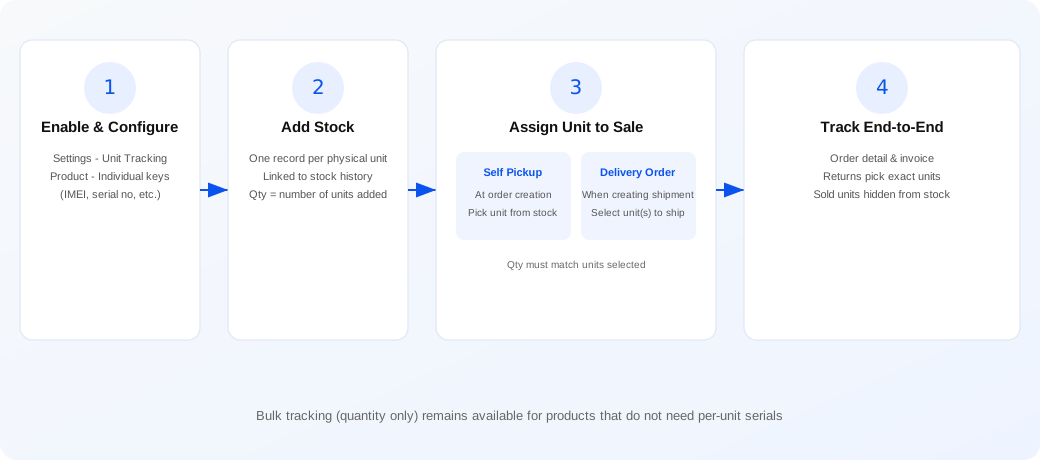
Getting Started
1. Turn on the business feature
Go to Settings → Product and enable Product Unit Tracking Info. Until this is on, per-unit fields stay hidden across the admin panel.
2. Configure each product
On the product's Inventory & Pricing section, open Stock Tracking Settings:
- Set Tracking Type to Individual
- Add one or more Unit Tracking Keys — the field names you want to capture per unit (for example
IMEI,serial_no,batch_code)
These keys are defined once per product and apply to every variant SKU under it.
3. Receive stock unit by unit
When you Add Stock for an individually tracked SKU, you enter details for each physical unit — one row per piece with values for your configured keys. The system creates:
- A stock history entry (receive date, buying price, optional MFG/expiry)
- One individual unit record per piece, linked to that stock intake
Stock quantity for the SKU increases by the number of units you add. Your stock history view lists each unit and its tracking values so you can audit what is still available.
Manufacturing businesses can also register finished units on in-progress manufacture orders when the product uses individual tracking — each finished unit carries the same key structure before it enters sellable stock.
Assigning Units to Customers
A unit is not "sold" in your records until it is linked to an order line. When you assign it depends on the order type:
Self-pickup orders (in-store / counter sale)
At order creation, when you add an individually tracked product to the cart, the admin prompts you to pick the exact unit from available stock. Rules:
- You must select one unit per quantity — if the customer buys 2 phones, you pick 2 serial numbers
- Only units not already assigned to another order appear in the picker
- You can search by IMEI, serial, or any value stored in the unit's data
This happens at checkout because the customer takes the item immediately — there is no separate delivery step.
Delivery / online orders
For shipped orders, unit assignment happens when you create a delivery order (Shiprocket, India Post, or self-managed). In the delivery modal, for each line that uses individual tracking, you select which unit(s) are going out in that shipment. The same rules apply: selection count must match shipping quantity, and already-assigned units are excluded.
Split shipments are supported — you can assign different units across multiple delivery rows for the same order line over time.
What You Can See After Assignment
Once units are linked to an order:
- Order detail shows which IMEI/serial (or custom keys) the customer received
- Invoices and credit notes print the tracking values on the line item — useful for warranty and support
- Returns let you pick the specific units being sent back, tied to what was originally sold on that line
- Available stock automatically hides units that are already on an open order
That last point is important: you cannot accidentally sell the same serial twice. The picker only lists units still in your available pool.
Compared to Bulk Inventory
Growupsell supports both models side by side:
- Run bulk counting for fast-moving catalogue items
- Run individual tracking only where serial-level accountability matters
- No need for a separate system or spreadsheet for high-value SKUs
Bulk products continue to use simple quantity add/deduct. Individual products add the extra step of unit selection at the right moment in the fulfilment flow — self-pickup at order time, delivery orders at shipment time.
Perfect For
- Mobile and electronics retailers (IMEI / serial compliance)
- Appliance and equipment dealers
- Any business where warranty, returns, or audits require knowing the exact unit sold
- Manufacturers who register finished units before they hit the sales floor
Get Started
Enable Product Unit Tracking Info under product settings, set your first product to Individual tracking, add your keys, receive stock with real unit data, and the next self-pickup or delivery order will walk you through selecting the right piece for each customer.